
Thank you for using Jamroom 5's Flashback skin.
If you are installing this template yourself please follow the instructions below using suitable file editing software such as BBEdit or alternatively use the Template Editor in your Jamroom Admin Skin Tools.
If you prefer not to install yourself we have a guaranteed installation service available, visit us for more info: http://www.jamroom.net
Installation:
1. Unzip the file on your hard drive and using a suitable FTP software simply upload the jrFlashback folder to the skins directory on your server.
2. To activate the Flashback Skin for your Jamroom5 Install, log-in as admin and click the Skins tab, then click the jrFlashback menu entry and on the Info tab check the set as active skin checkbox and finally click the save button.
Site branding:
Simply edit or replace the following files to change the branding of your site.
- Main Header Logo (site wide | width: 325px height: 75px) - skins/jrFlashback/img/logo.png
- Privacy Policy - skins/jrFlashback/privacy_policy.tpl
- Terms Of Service - skins/jrFlashback/terms_of_service.tpl
- Contact Us - The contact us page is a form, to modify, add/delete fields to the contact form, click the form designer button at the top right while on the contact us page logged in as the site admin.
- Footer Information - skins/jrFlashback/footer.tpl
Flashback Settings (skins/jrFlashback/config.php file):
Flashback has many configuration settings, as admin you will see a link in the ACP drop down menu which links to the Flashback Skin Settings page in your admin.
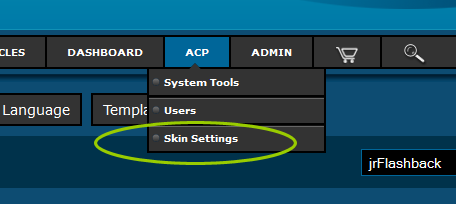
Note: Please take your time to view the Flashback Settings and descriptions.
Artist & Member Quota ID's:
Set these two fields with your artist and member quota ID's.
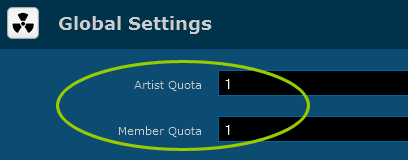
Note: If Jamroom5 has just been installed, you'll want to create the member quota in your admin control panels Profiles > User Profiles > Tools > Quota Browser. After creating the new quota, if you did not use the quota clone tool, you'll want to modify all the modules you want to allow access for the new quota as they are not set by default.
Featured Profiles
Enter the 3 profile ID's you want to show in the Featured Profile section on the index page.

Note: Separate multiple ID's with a comma, ie. 1,2,3.
Blog Limit
Enter the number of blogs you would like to show on the home page. .

House Radio:
As standard the House Radio is DISABLED in the Flashback Settings. If you haven't already done so, create a new Admin Audio Playlist by clicking the Add To Playlist button next to the audio tracks you want on your House Radio and make a note of the Playlist Name. After you've created your playlist, go to your Flashback Settings, ENABLE the Show House Radio feature and enter the Playlist Name.
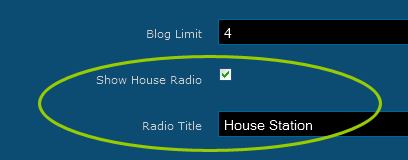
Note: You must have the jrPlaylist module installed and activated.
House Channel:
As standard the House Channel is DISABLED in the Flashback Settings. If you haven't already done so, create a new Admin Video Playlist by clicking the Add To Playlist button next to the video tracks you want on your House Channel and make a note of the Playlist Name. After you've created your playlist, go to your Flashback Settings, ENABLE the Show House Channel feature and enter the Playlist Name.
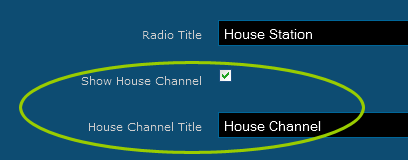
Note: You must have the jrPlaylist module installed and activated.
Auto Play
Enabling this option will turn on your players auto play feature.
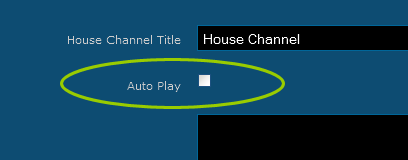
Note: This is for the following profile players only. Audio, Playlist and Video.
Top & Side Ads:
Enter your Ad code here for the top 468x60 Ad and the side 180x150 Ad.

Note: As of now, the Jamroom 5 does NOT have an Ad Manager Module.
Require Images:
Enabling this option will hide entries without an image associated.

Page Breaks:
The following pagebreaks can be set.
- Default Pagebreak - The default pagebreak for most lists.
- Artist Pagebreak - This is the pagebreak for the Artist page.
- Gallery Pagebreak - This is the pagebreak for the Gallery page.
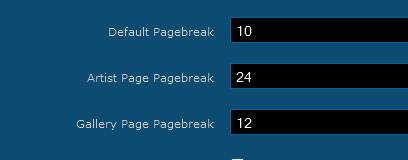
Note: The pagebreaks for Artist and Gallery should both be divisible by 4!
Show Stats:
Enabling this option will show the stats in the side section.
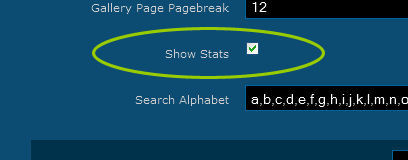
Note: Disable this option to hide the stats.
Search Alphabet:
Default character settings for letter searches.
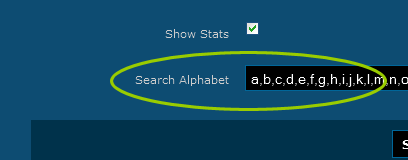
Requirements:
Required:- Jamroom Core v5.x.x
- jrAction Module v1.x.x
- jrAudio Module v1.x.x
- jrVideo Module v1.x.x
- jrPlaylist Module v1.x.x
- jrBlog Module v1.x.x
- jrPage Module v1.x.x
- jrGallery Module v1.x.x
- jrEvent Module v1.x.x
- jrSoundCloud Module v1.x.x
- jrVimeo Module v1.x.x
- jrYouTube Module v1.x.x
Support:
If you have any support questions or require assistance please use the Support Center.
Thanks Again For Your Purchase And Your Support!.
- The Jamroom Network Team
Copyright ©2013 Jamroom Network Design
Jamroom is Copyright ©2003 TallDude Networks, all rights reserved.